Tutorials

Walk through every feature in CapiPark — from finding your first spot to running a busy parking zone. Use the buttons below to jump between tracks.

01

Create your account

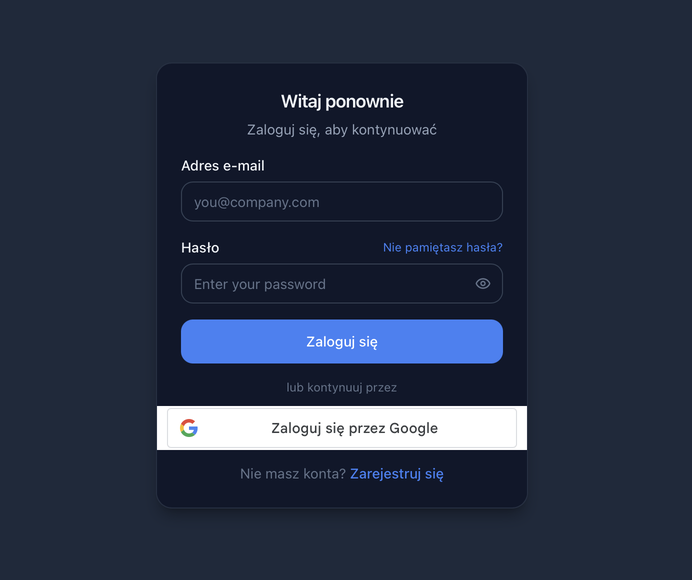
Sign up with email and password, or use Google for one-click access. We ask for your phone number once so an owner can reach you if there's an issue with a booking — it's never shown publicly.
Create your account

Sign-in screen with the one-click Google option highlighted.
02

Browse parking zones near you

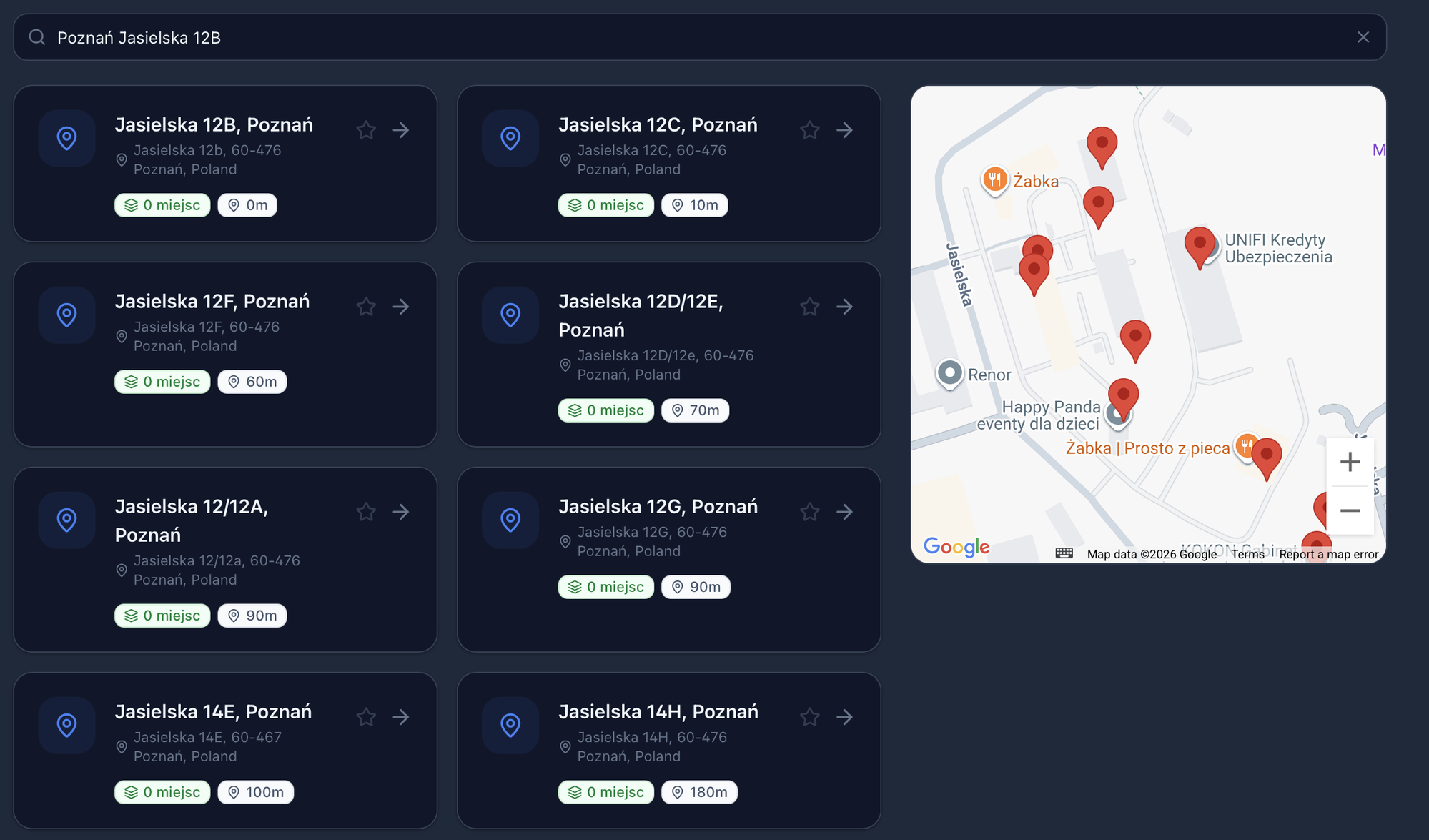
On the Book page, search by address or zone name. CapiPark geocodes your query, finds every zone within 2 km, and sorts the results by distance so the closest options come first.

Browse parking zones near you

Search results with distance badges and a map preview — closest zone on top.

03

Pick a spot on the floor plan

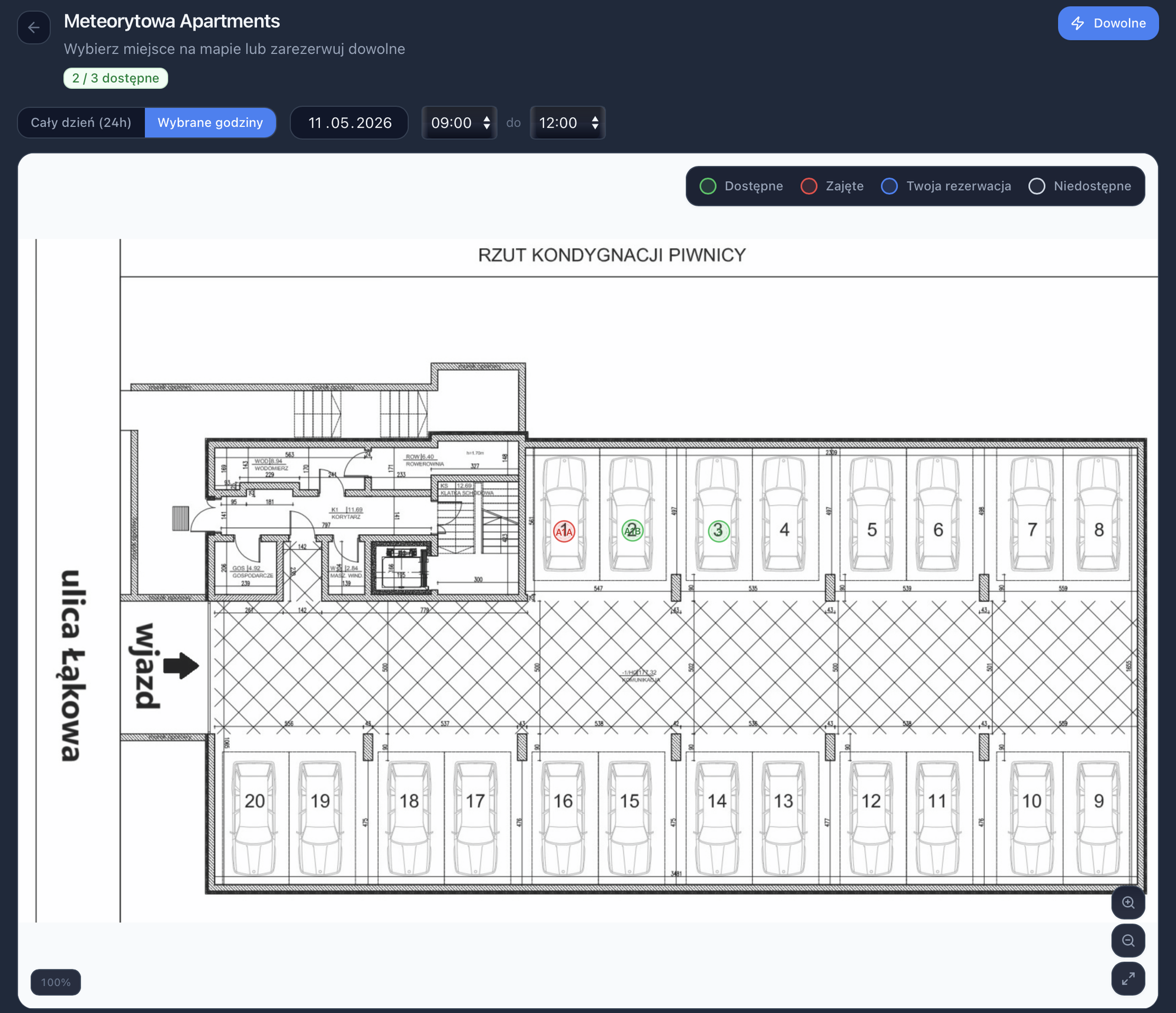
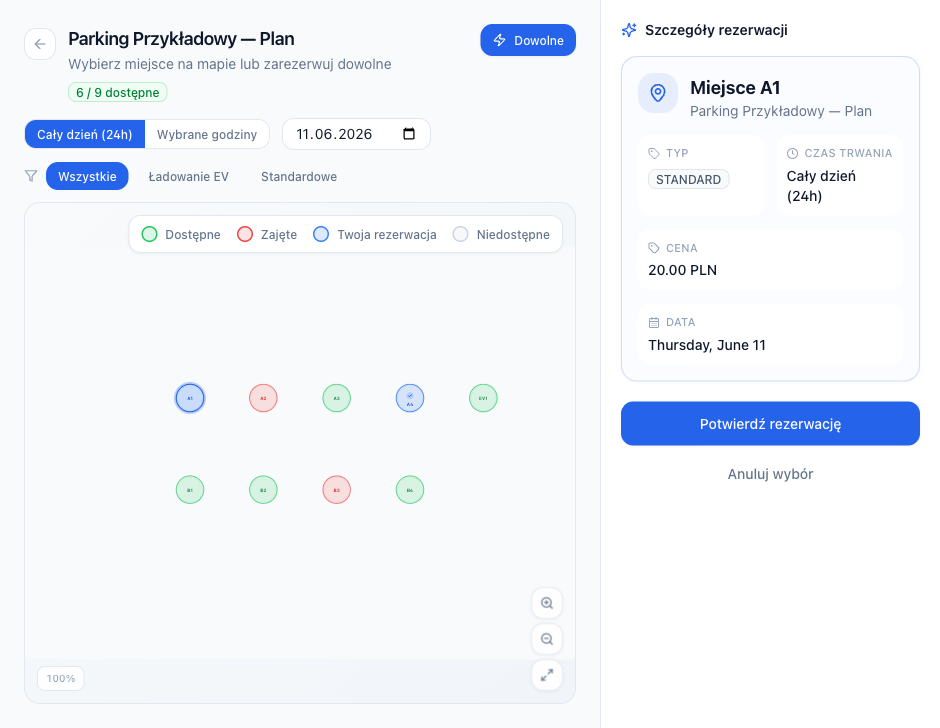
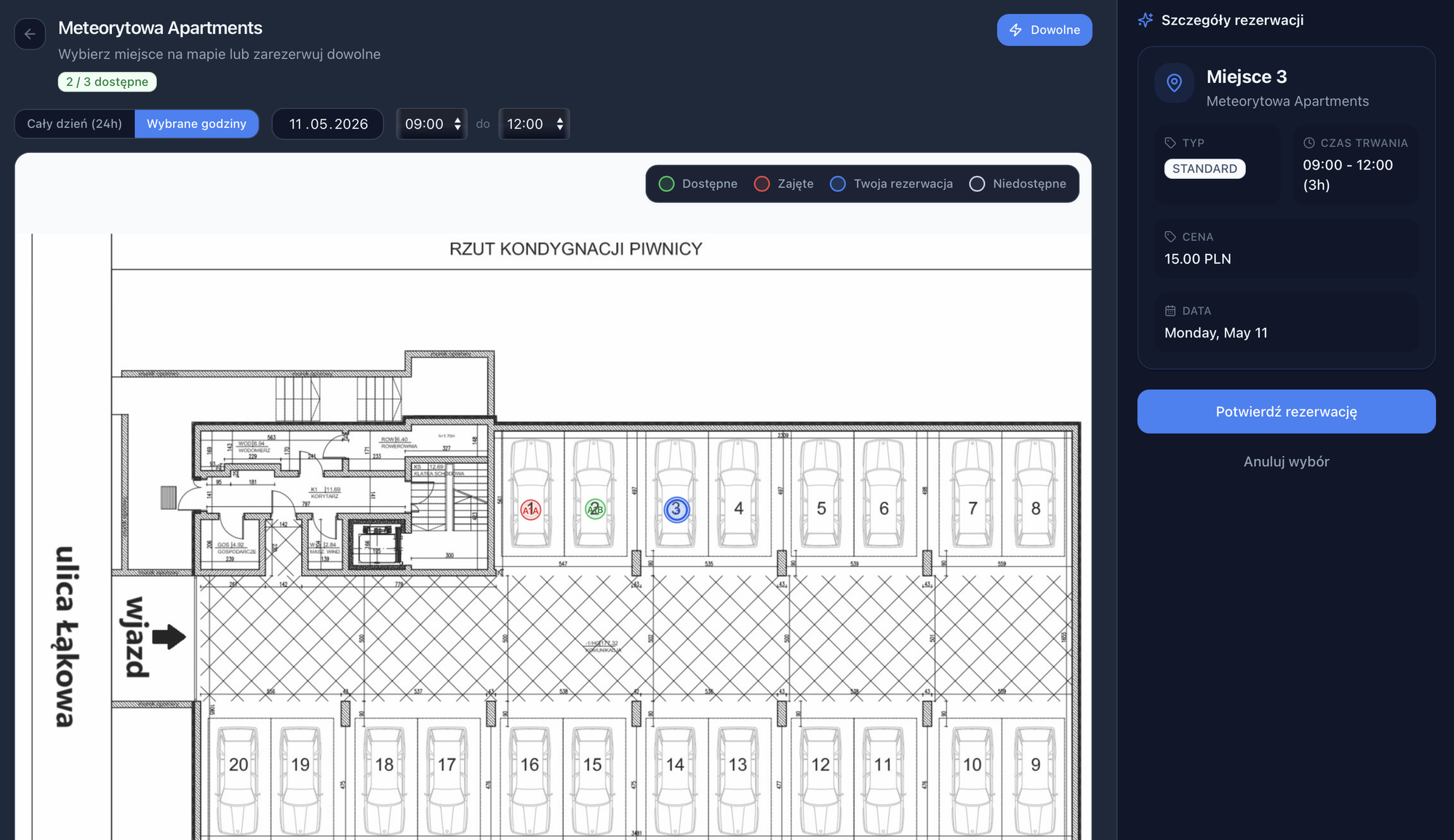
Open any zone to see its interactive floor plan. Green spots are available, red are taken, your own bookings show in blue, and gray means temporarily unavailable. Click a green spot to select it.

Pick a spot on the floor plan

Floor plan showing the four spot states: available, taken, your booking, and unavailable.

04

Choose full day or custom hours

Toggle between a full-day booking and a custom hourly window. Pricing comes straight from the spot — hourly rate × number of hours, capped at the daily price when one is set.

Choose full day or custom hours

Hourly booking selected — the sidebar shows the live total for the chosen hours.

05

Use "Book Any" auto-assign

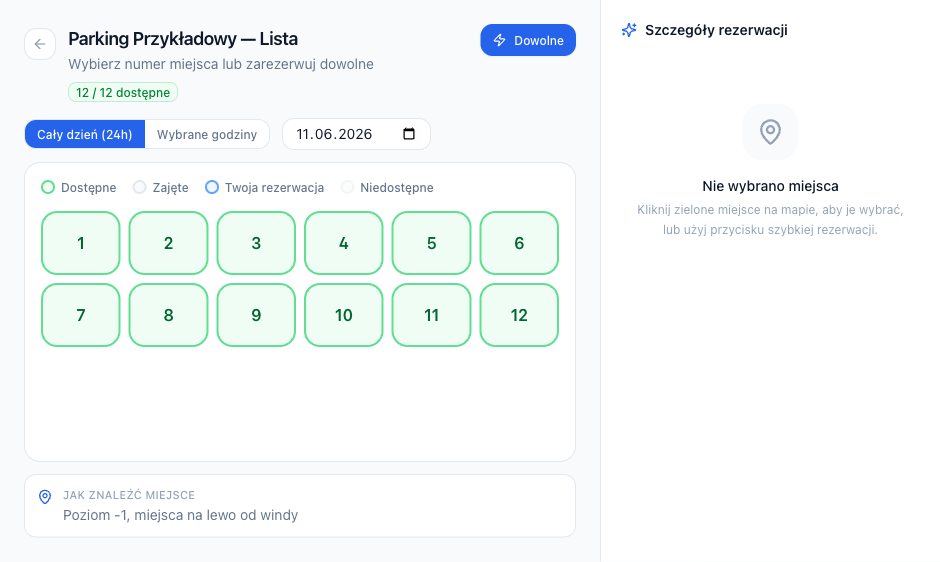
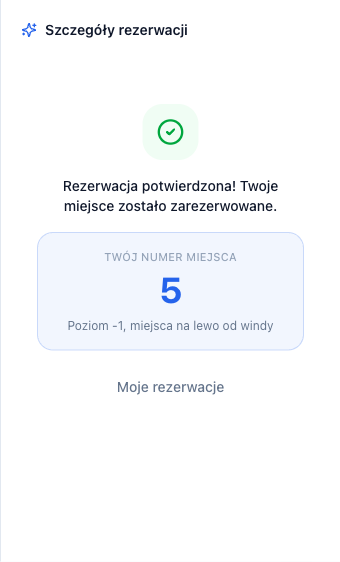
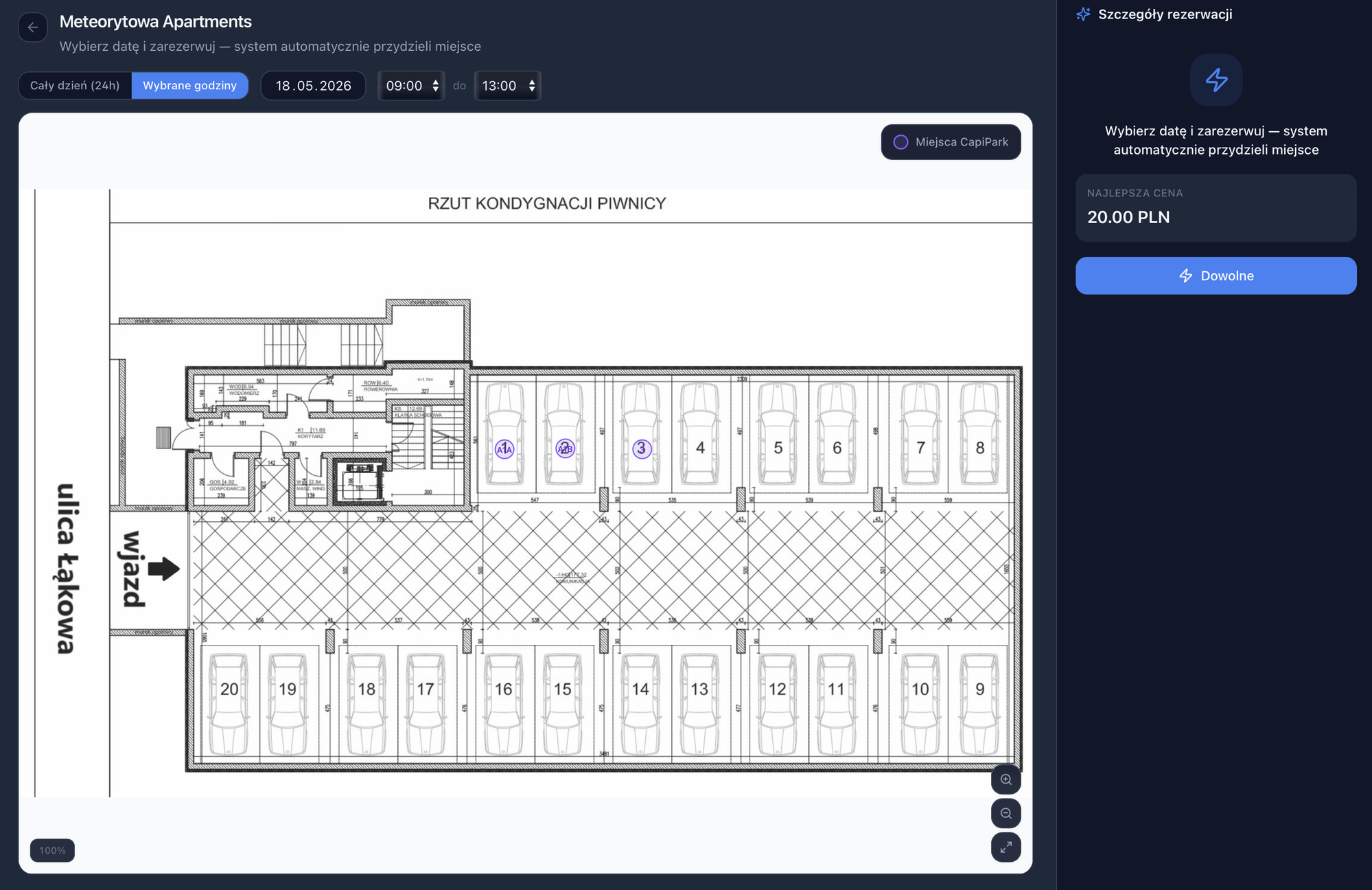
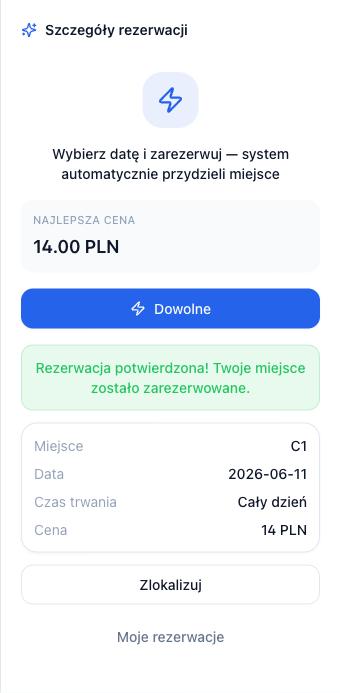
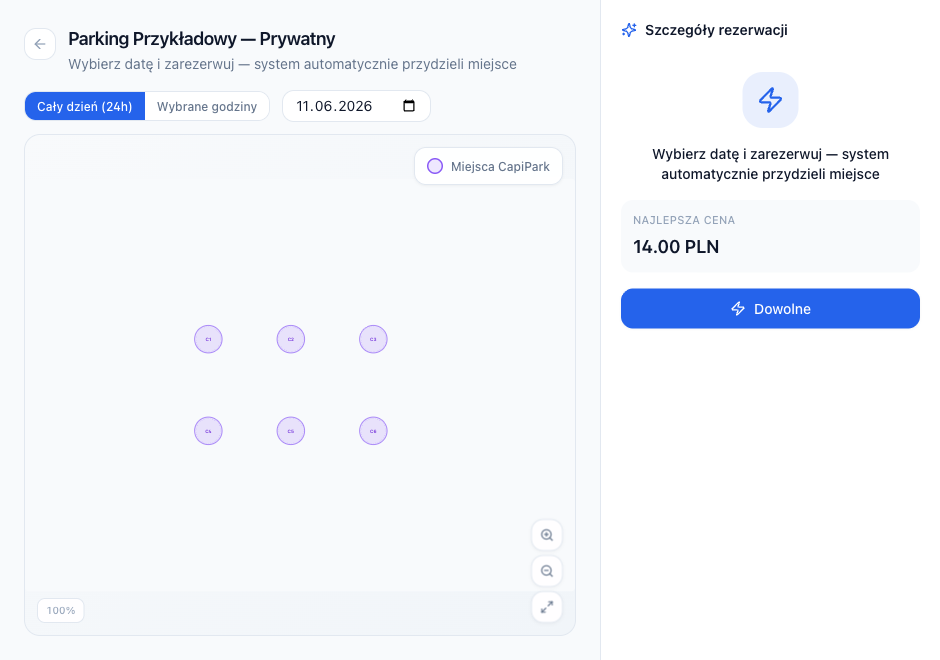
Some zones hide per-spot availability for privacy. You'll see all spots in neutral violet and a single "Book Any" button — CapiPark picks the cheapest available spot for the date and hours you chose. The price preview shows exactly what you'll pay (or "Free").

Use "Book Any" auto-assign

Hidden-availability zone — violet spots and the best-price preview above the Book Any button.

06

Track and cancel your bookings

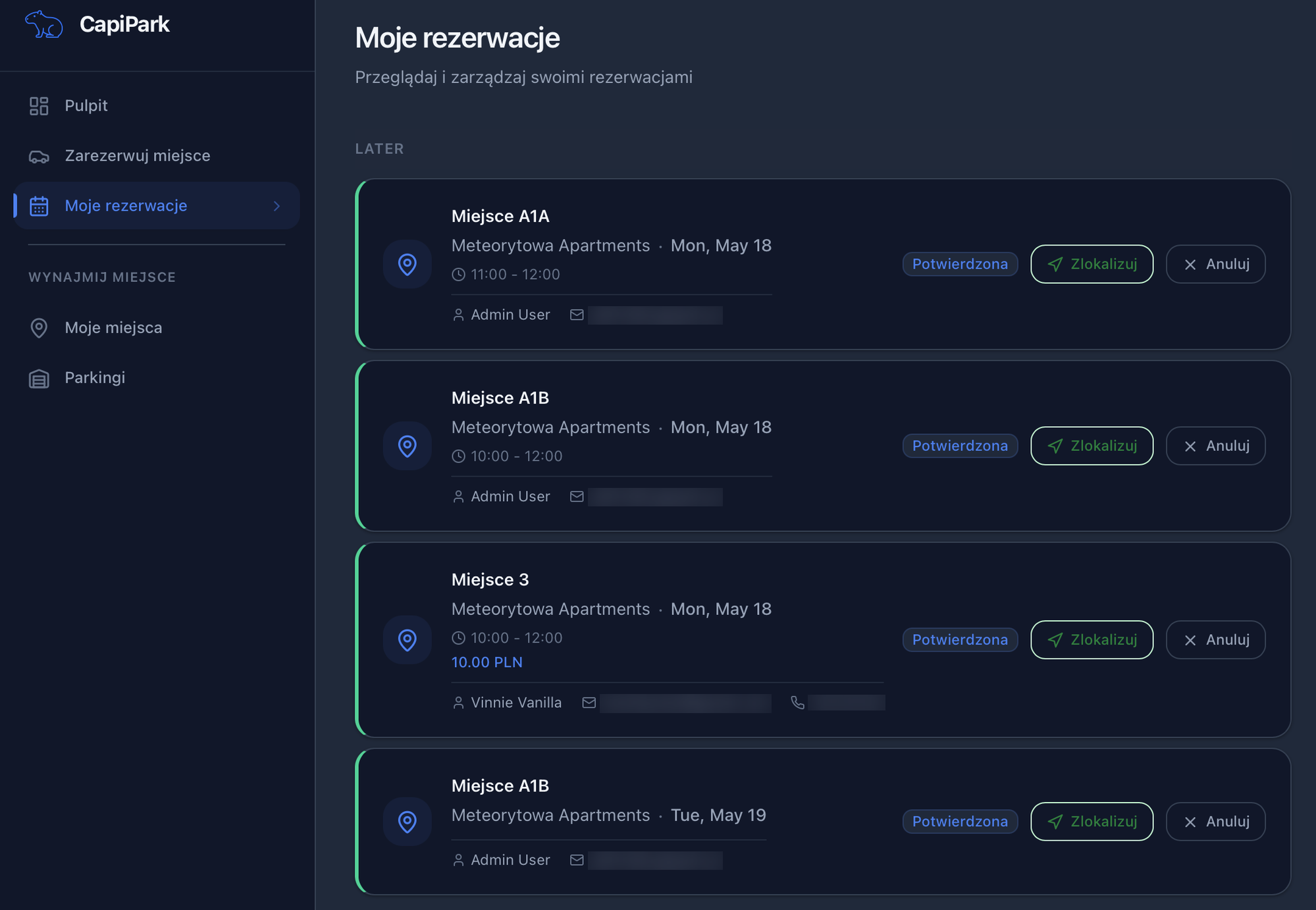
Every active booking lives on My Bookings, grouped by date. From there you can locate a spot on the map, view the owner's contact details, or cancel a booking you no longer need — the spot is freed instantly for someone else.

Track and cancel your bookings

My Bookings grouped by date, with locate, contact, and cancel actions on each card.

01

Create your first parking zone

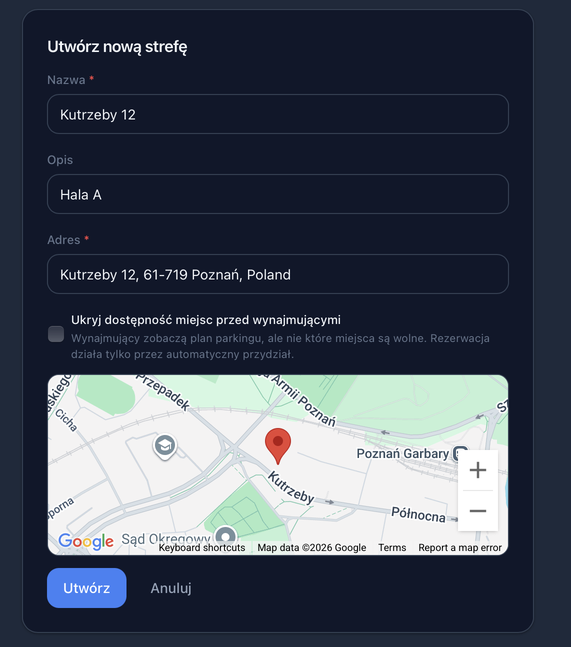
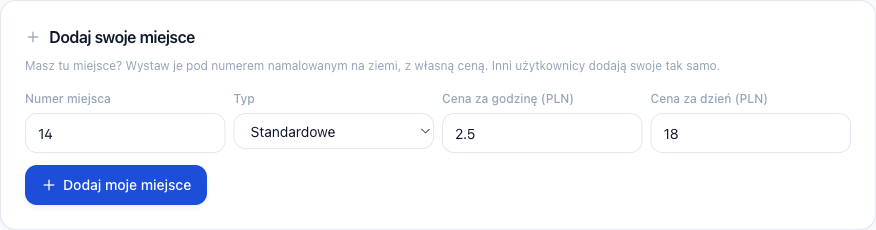
Owners start by creating a zone: a name, an address, and a currency (PLN or EUR). The address is geocoded automatically so the zone shows up in renters' proximity searches.

Create your first parking zone

New-zone form with name, description, address, and currency filled in.

02

Upload a floor plan and add spots

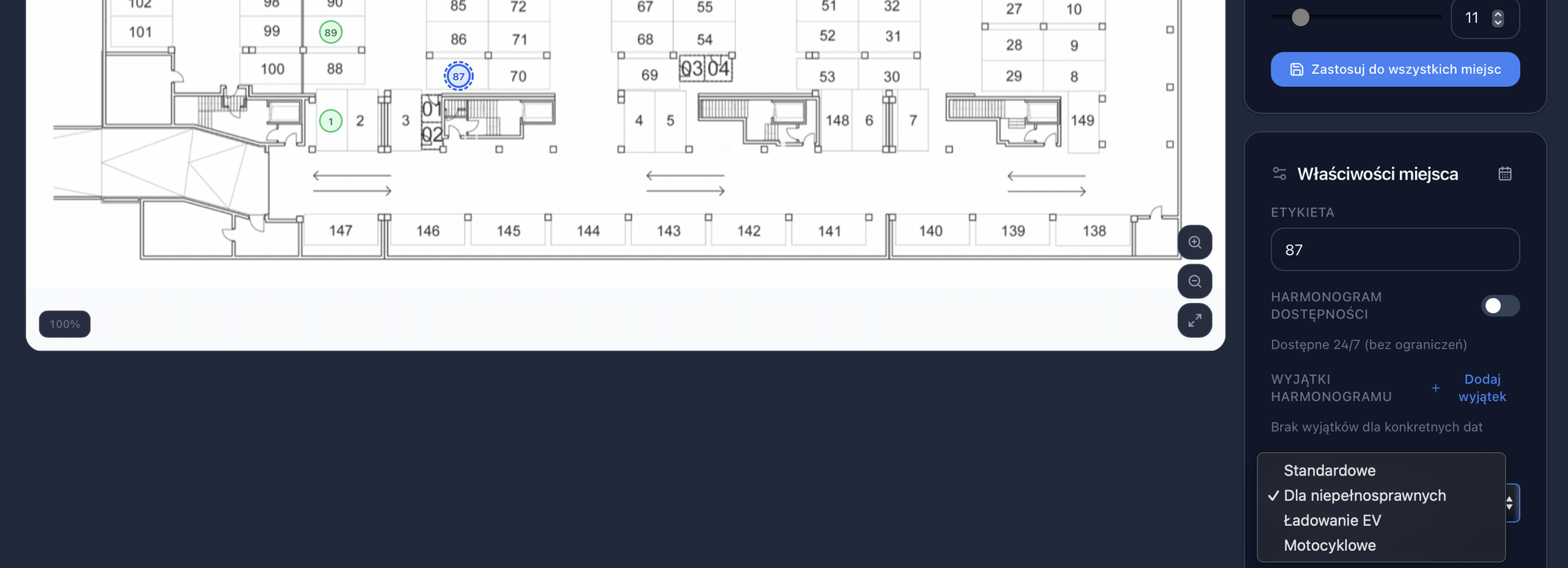
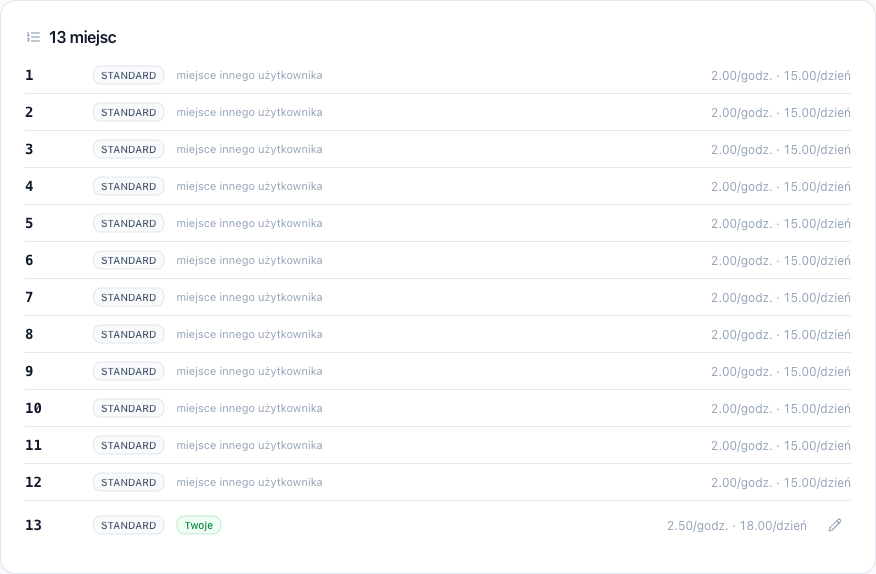
In the desktop zone editor you can upload a floor-plan image and place spots on top of it. Each spot has a label (e.g. A1, B2), a type (standard, EV, accessible, motorcycle), and a draggable position with optional rotation.

Upload a floor plan and add spots

Zone editor with a floor plan loaded and the spot-type selector open.

03

Set price and availability schedule

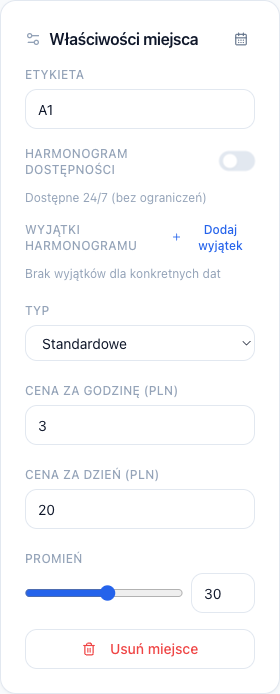
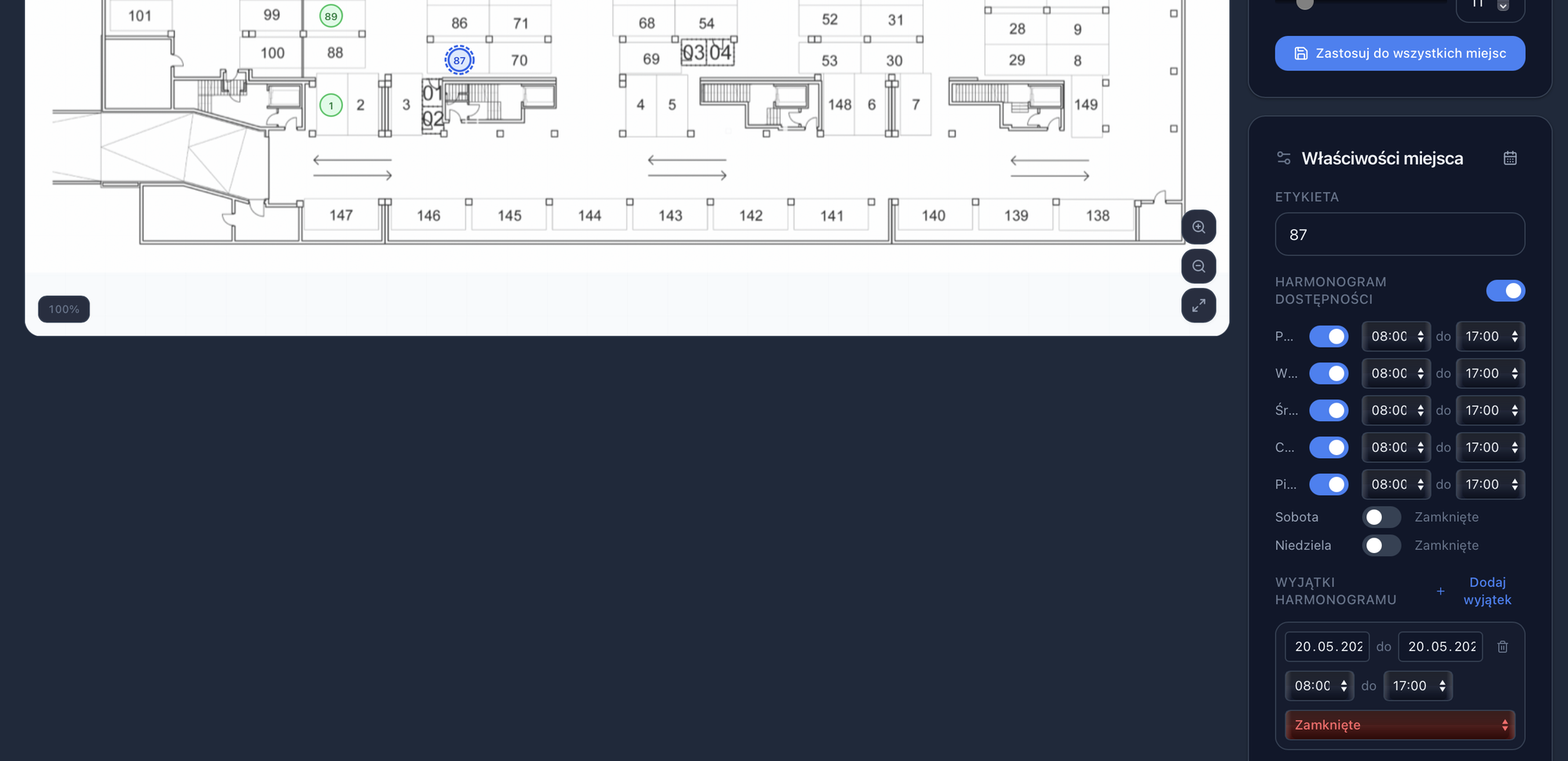
Each spot can have an hourly price, a daily price (which acts as a cap on hourly bookings), a weekly recurring schedule (e.g. Mon–Fri, 8 am–6 pm), and date-range overrides for holidays or maintenance.

Set price and availability schedule

Spot editor — weekly schedule on top, with a date-range exception below.

04

Hide availability for privacy

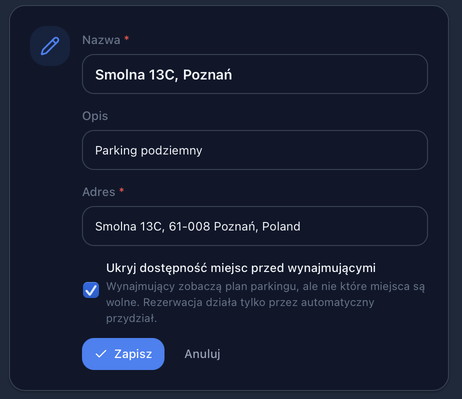
Switch "Hide availability" on for a zone to keep per-spot status private. Renters then see all spots in neutral violet and have to use "Book Any" — CapiPark still picks the cheapest available spot, and you preview the same price renters see.

Hide availability for privacy

Zone settings with the "Hide availability" option enabled, ready to save.

05

See incoming bookings

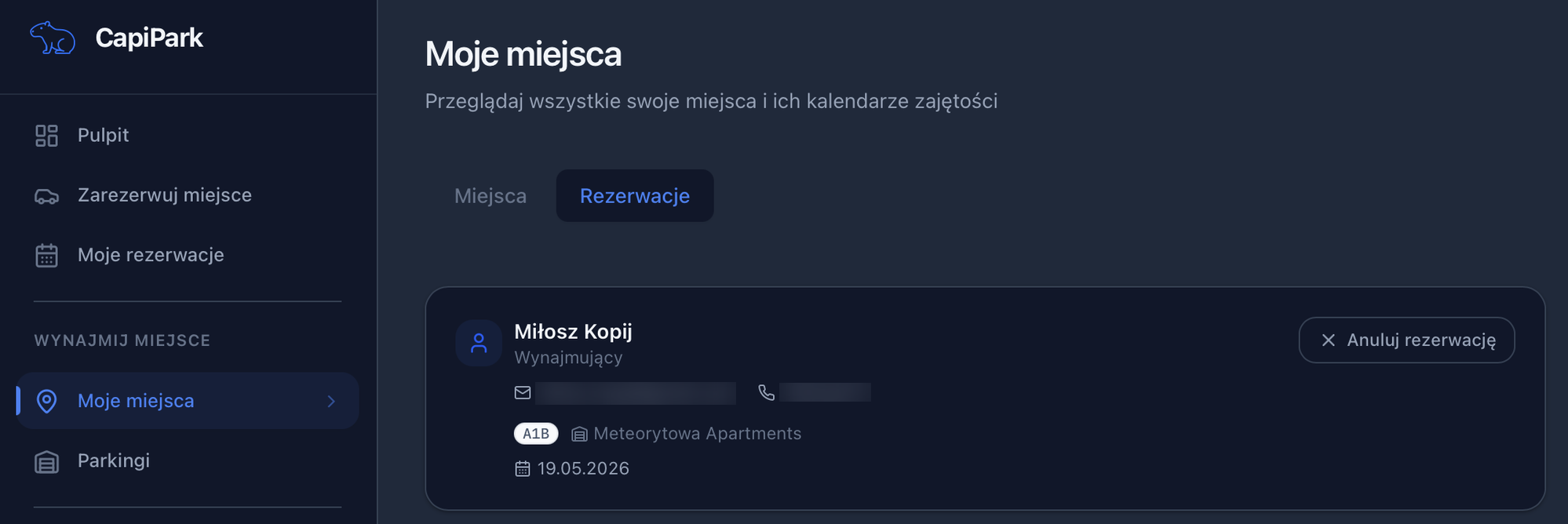
The owner Bookings tab lists every booking on your spots, with the renter's name, contact details, date, and duration. Filter by date or zone to find a specific booking quickly.

See incoming bookings

Owner Bookings tab — one renter booking with name, contact (blurred), spot, zone, and date.

06

Cancel a booking with a reason

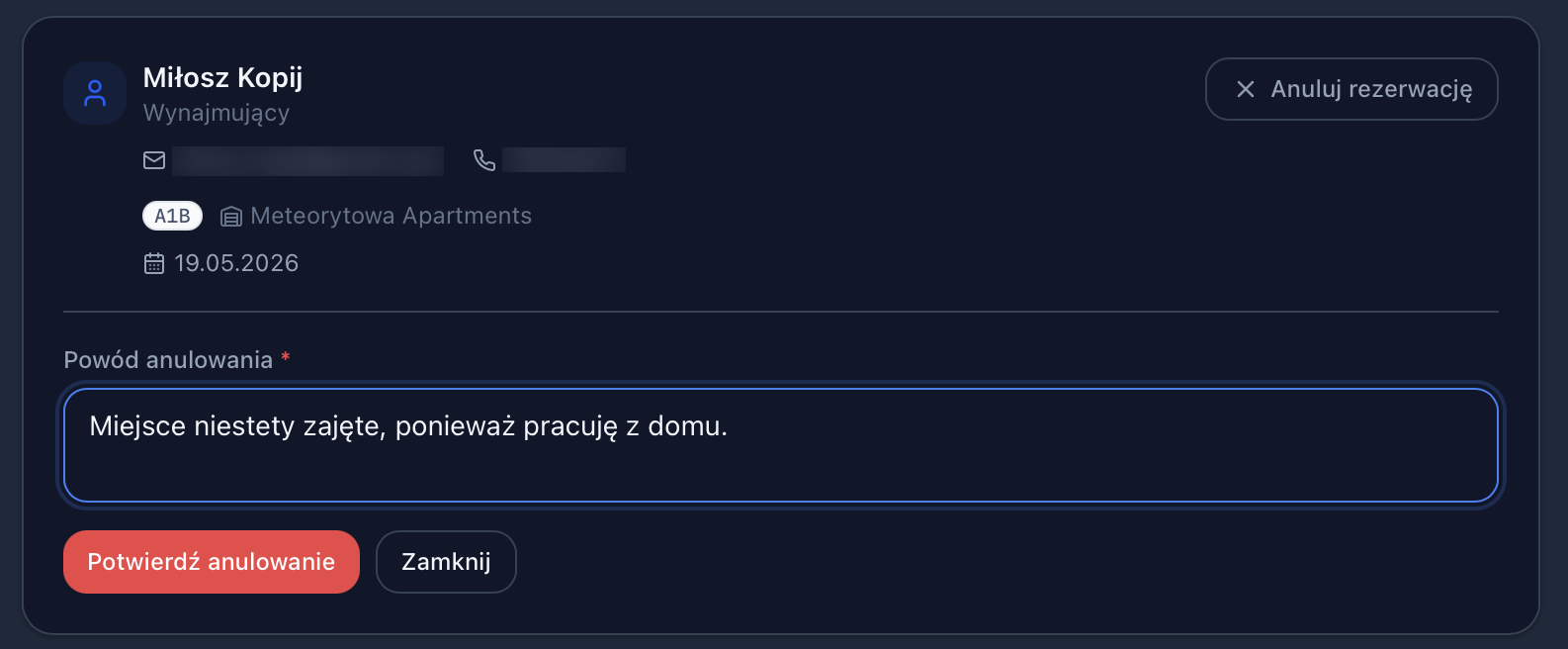
If something comes up, you can cancel a renter's booking yourself. A short reason is required (1–500 characters) — it's included in the email we send the renter so they understand what happened.

Cancel a booking with a reason

Owner cancel dialog with the reason filled in above the Confirm button.

07

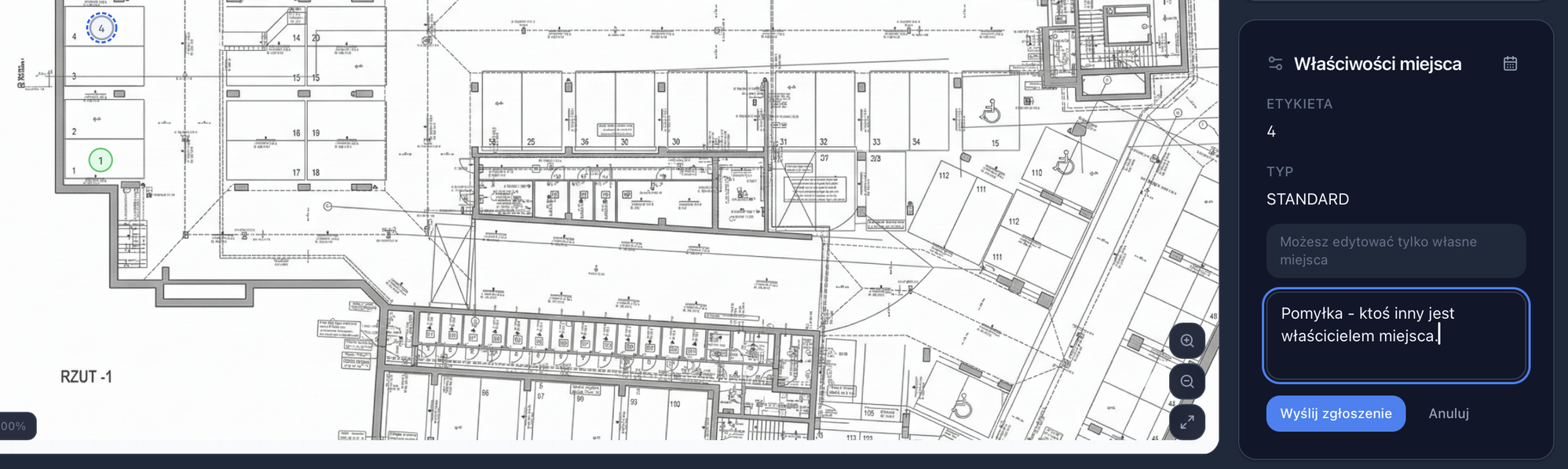
Flag another user's spot

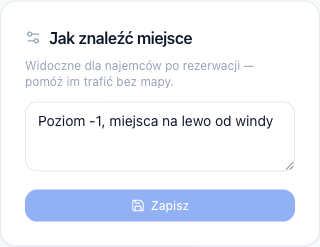
If a spot in your zone was added by someone else and looks wrong (wrong label, wrong price, bad position), flag it for admin review with a short reason — admins decide whether to dismiss the flag or remove the spot.

Flag another user's spot

Spot details panel with the flag-spot reason filled in.

08

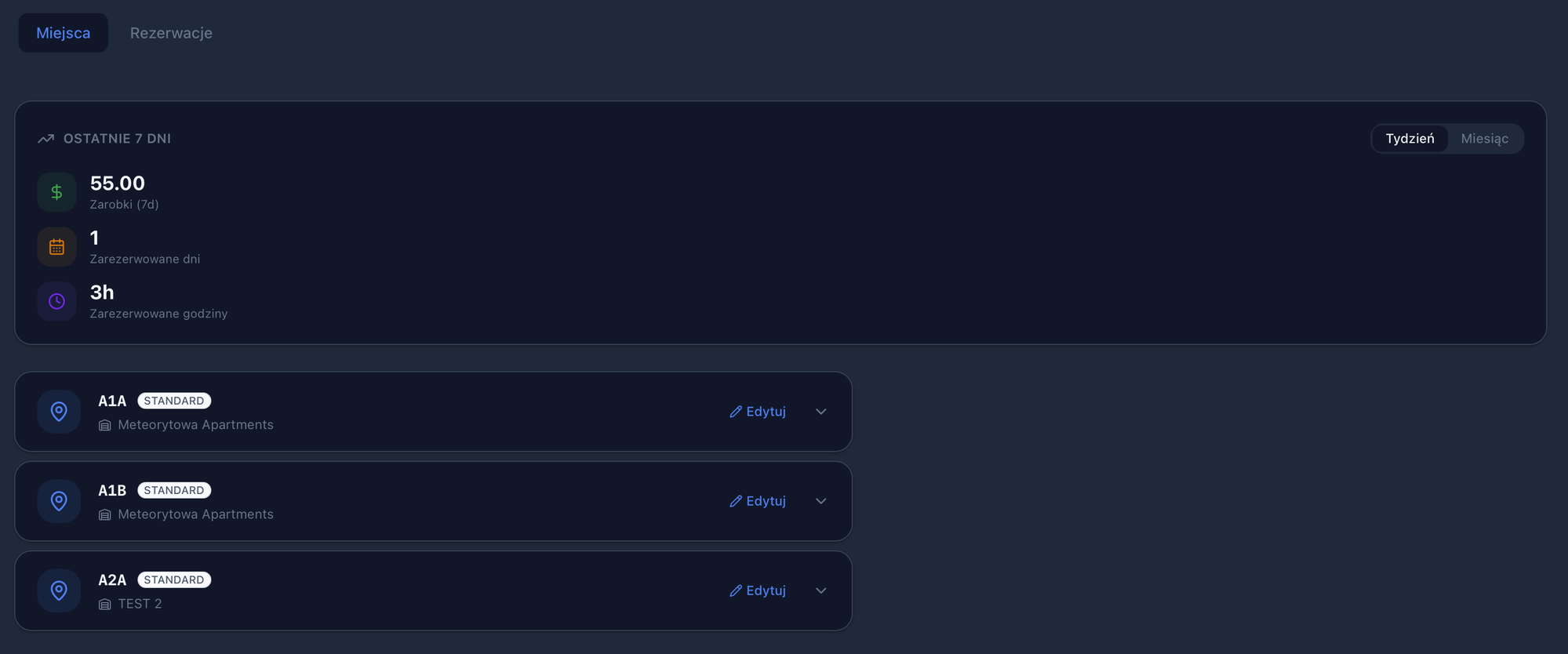
Track earnings and bookings

The owner dashboard shows your recent earnings, the number of booked days and hours, and a list of your spots — so at a glance you know how each zone is performing.

Track earnings and bookings

Owner dashboard — 7-day earnings, booked days and hours, and the list of spots.

Across the platform

01

Looks great on mobile too

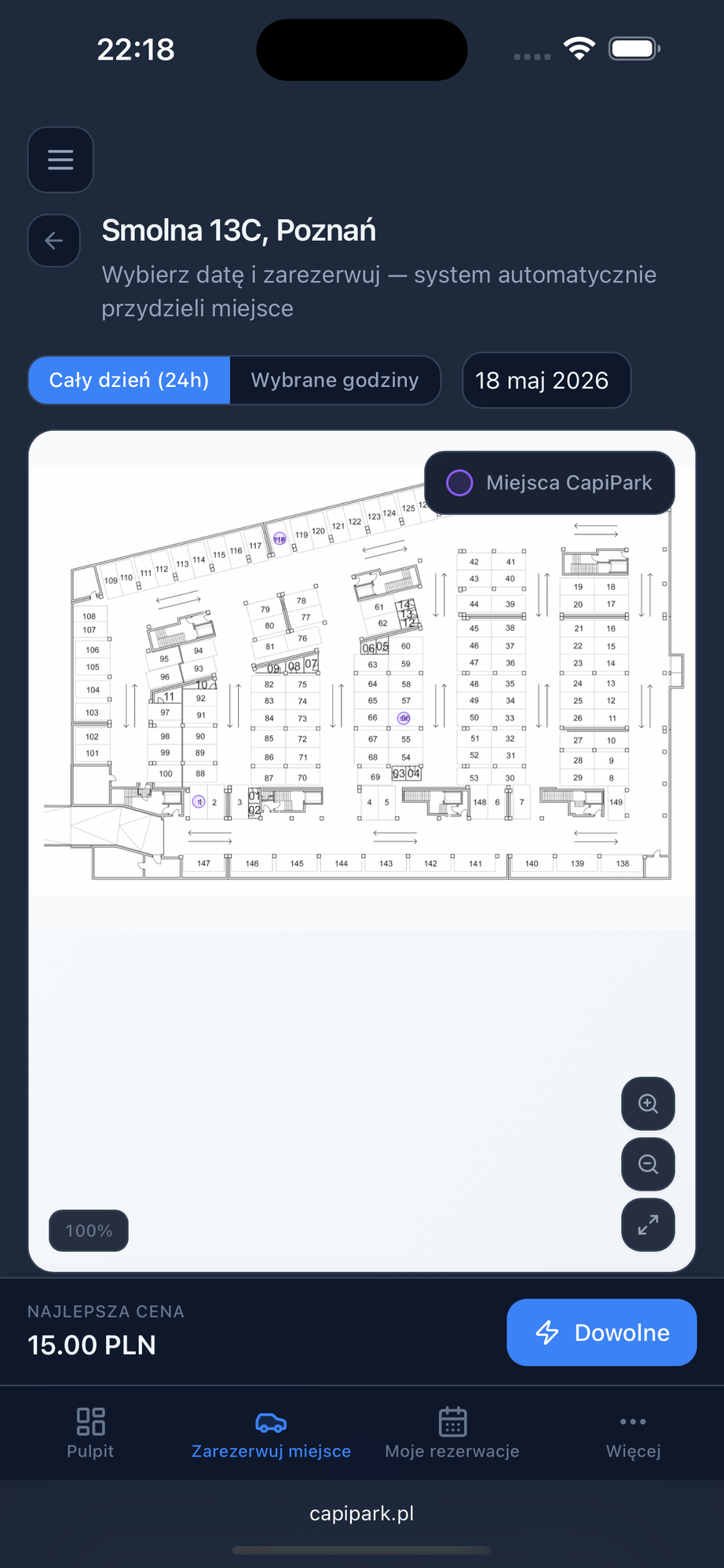
Every page is responsive. On phones, a sticky bottom bar keeps the Book button in reach while you pan the floor plan, and a bottom tab bar gets you between Dashboard, Book, Bookings, and More in one tap.

Looks great on mobile too

Mobile booking view — sticky "Book Any" bar pinned above the bottom tab bar.

Ready to try it yourself?

Create an account in under a minute — no payment details required.

Get started